To add an image to a page, you need to host it somewhere, so that you can grab the URL and add it in your code.
如果我们想在页面上加一张图片,那么我们的图片就需要存储在某个地方。因此我们就可以把把这个图片的URL插入到代码中。
<img src=”https://upload.wikimedia.org/wikipedia/commons/0/0f/Grosser_Panda.JPG”>
这个就是我们把维基百科的图片插入到独立站的代码。
In Shopify, you usually don’t think about this, because you just upload the image to products, or you upload it in the theme customizer.
但是在Shopify里我们不用考虑这些,因为我们只是把图片上传到产品或是是主题编辑器里。
But if you’re writing some HTML and you want to include an image, what do you do?
如果我们在写HTML的时候想把图片加入进去怎么办?
Here are some ways to host and access images in Shopify:
下面是Shopify存储和获取图片地址的方法:
Upload a new image to Content > Files.
上传新图片到内容>文件里面。
This is pretty straightforward. Simply go to your Shopify admin, go to Content and then Files, and upload your image.
这样非常直接简便。去到Shopify管理界面,依次找到内容–文件,之后上传图片就可以了。
Click the link icon to copy the URL of that image, and paste it into your code.
点击链接图片我们就可以复制相应图片的网址了。之后黏贴到我们的代码里就行了。

You can also access these images in Liquid, if you want to be clever about it, and use dynamic values or filter the image somehow. But often for small tweaks, there is no need to use Liquid.
我们就可以在Liquid里获取这些图片了。如果你想聪明一点,使用动态值或以某种方式过滤图像。但对于小的调整,通常不需要使用 Liquid。
Get the URL of a product image, or an image you added through the theme customizer.
如何获取产品图片或者是我们通过主题编辑器上传的图片的URL呢?
If you already have an image elsewhere on your store, it might be better to use that URL rather than re-uploading it.
如果我们店铺里面已经存在某一个图片了,我们在另一个地方再使用这个图片的时候,最好是获取这个图片的URL而不是再重新上传这个图片。
- Just right-click and inspect the image. You might need to open up some HTML elements in the inspector panel but you will quickly find the URL, although there might be several size options.鼠标右击图片并审查元素。我们可能需要在浏览器的检查器里面打开一些HTML元素,有可能在HTML里面你会发现有很多图片尺寸的选择,但是我们也能很快找到相应图片的URL。
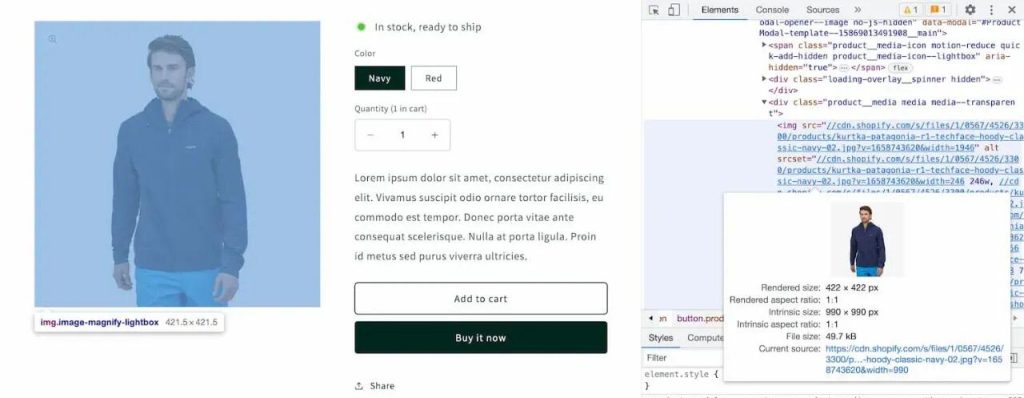
- View the image in a new tab. Just open the largest size you can see, or if you can’t tell which it is, then just any size.在新的窗口浏览图片。选择最大尺寸的图片打开,如果我们不能分辨具体是哪个图片的话,那么任何尺寸的都行。
- Pay attention to the end of the URL. After
.jpgor.pngyou will see a?v=followed by a number, and then&width=with a pixel width. This is what sets the current size of the image as needed in that part of your store. Simply remove everything after.jpgand hit enter to get the full-size image file in the best quality possible.我们需要注意URL的结尾。在.jpg或者.png后面你会看到?v= 后面有一串数字,在&width=之后有一个像素宽度。这个就是Shopify网店的网页上显示的图片的输出尺寸。删除.jpg之后的所有URL参数,点击ENTER键我们就能得到这个图片的原尺寸图片。
Upload an image to your theme assets.
如何上传图片到主题assets文件夹?
This is only when the image is going to become part of your theme, such as social media icons.
只有当这个图片是我们主题的一部分,比如是社媒图标时,我们才使用这个方法。
You should not junk up the assets folder with images that are content i.e. images of your products, lifestyle photography etc…
我们不能把assets文件夹里的图片和内容里的图片比如产品图片等混淆。
To upload an image here, you need to visit the code editor, and upload your file in the Assets folder.
要想在assets文件夹上传图片,我们需要进入代码编辑器,然后把文件上传到assets文件夹。
Unlike images in Content > Files, you won’t be able to get the image URL here. You can only access it using Liquid.
不和Content > Files文件里面的图片一样,你无法在这里获取图片的URL。我们只能通过Liquid来获取assets文件夹里的图片。
Getting images with Liquid
使用Liquid来获取图片
I will only list the basic forms for you to use as a reference. Check Chapter 6: Basic Liquid for more explanation.
我列举一些最基本的样式给大家演示。具体关于Liquid的内容我们将在第6章里阐述。
Liquid for product images
使用Liquid获取产品图片方法
Here we access the product object and use the image_url Liquid filter. The width is also required.
下面我们可以进入产品并用image_url Liquid过滤器来获取图片。这里的宽度也是必须的。
<img src=”{{ product.featured_image | image_url: width: 450 }}” >
Liquid for file images
使用Liquid获取文件里的图片
Here we use the file_img_url filter. The size is not required but default is very small. Note the syntax for size is different than the image_url filter.
这种情况下我们使用file_img_url 这个Liquid过滤器。文件的尺寸不是必须的,但是默认的尺寸会比较小。需要注意的是尺寸的语法和获取image_url 的不一样。
<img src=”{{ ‘potions-header.png’ | file_img_url: ‘800x’ }}” >
Liquid for assets images
使用Liquid获取assets文件夹的图片
Here we use asset_img_url. The size syntax is the same as the file_img_url.
我们使用asset_img_url来获取。尺寸的语法和获取file_img_url时一样。
<img src=”{{ ‘red-and-black-bramble-berries.jpg’ | asset_img_url: ‘800x’ }}” >